
Create Position
To create a position, do one of the following methods:
Method 1:
Step 1: Login by the head of human resources [link – Create account for the Head of Human Resources].
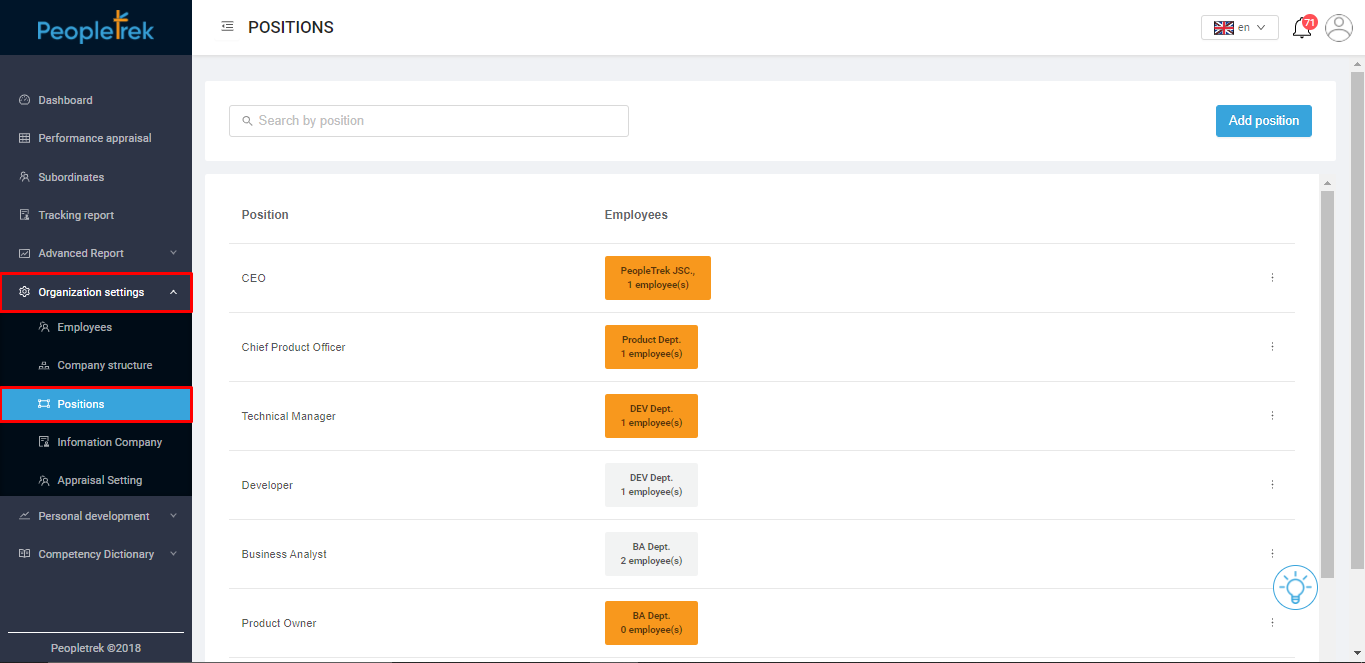
Step 2: Select the “Organization Settings/ Position” tab.
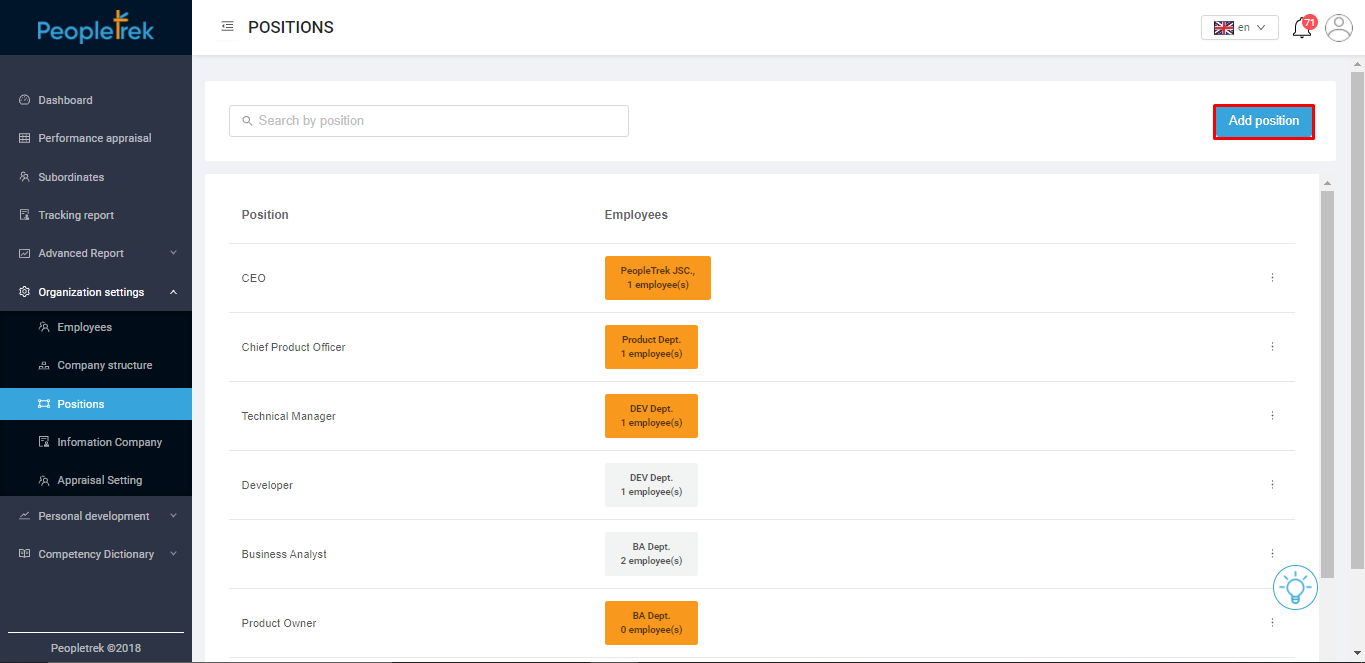
Step 3: Select the button “Add position”, as shown below:
Step 4: Enter the name of the position in the field “Position name.
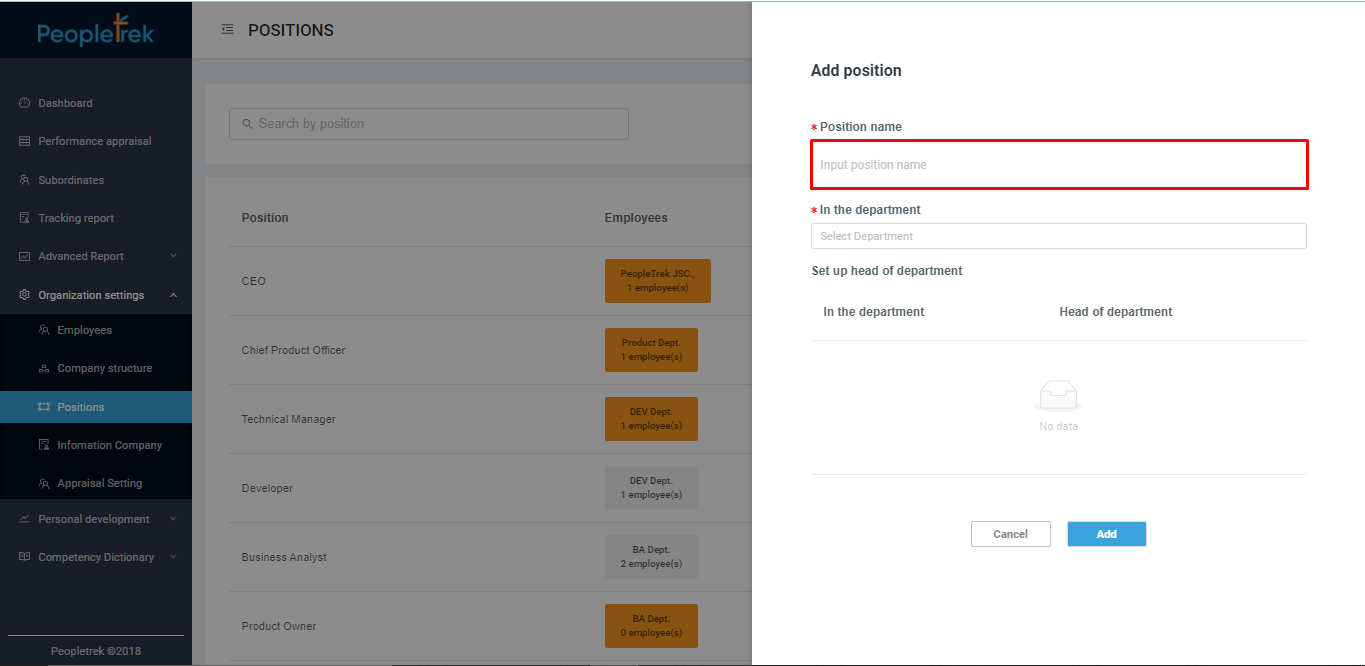
Step 5: In the “In the department” field, select the department which sticks to the position.
Note: A position can be stick to multiple Departments.
Step 6:(Optional): If you want that position as head of the department, active the button as shown below:
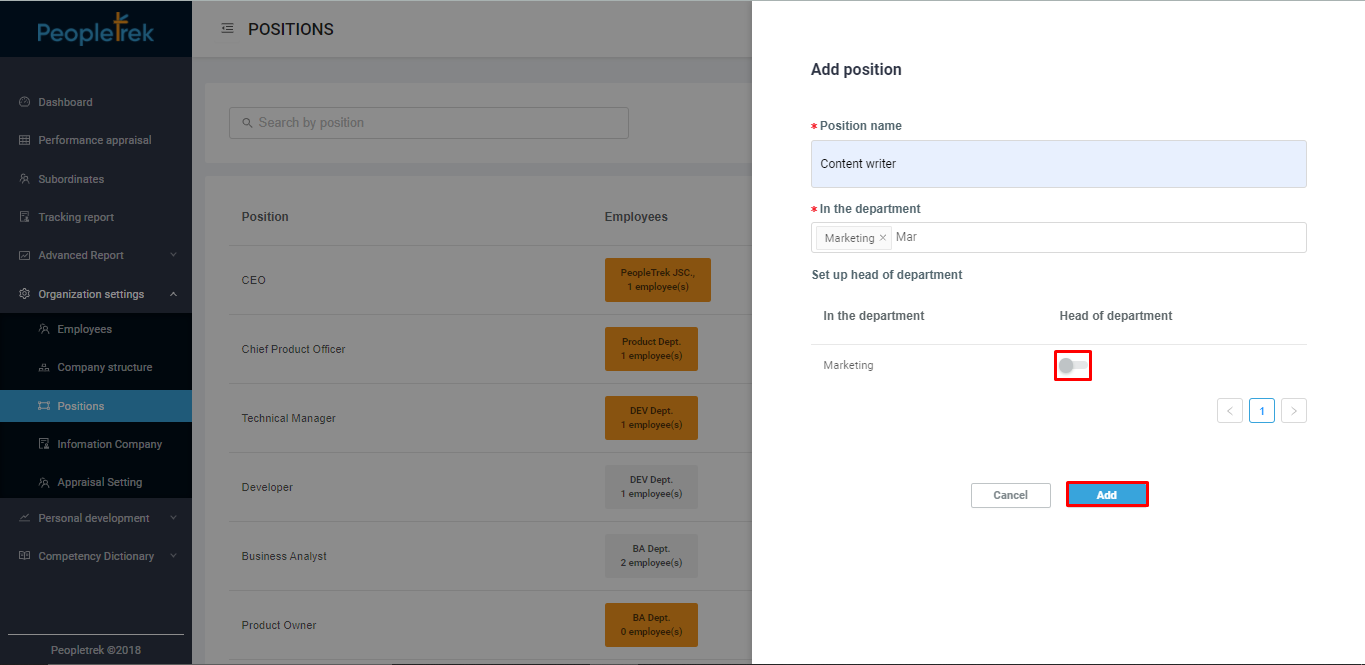
Step 7: Select “Add “.
Method 2
Step 1: Select tab “Organization Settings / Company Structure”.
Step 2: Select Department as you want.
Step 3: Click “Add position to the department”.
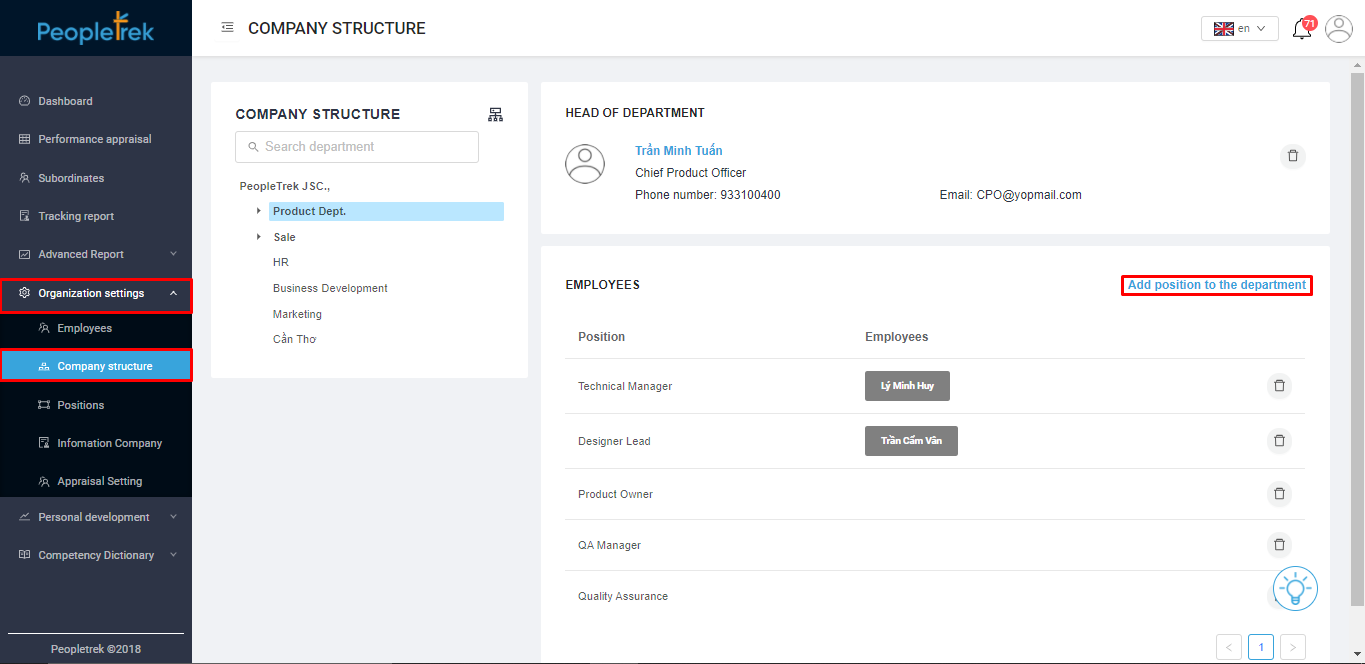
which as shown below:
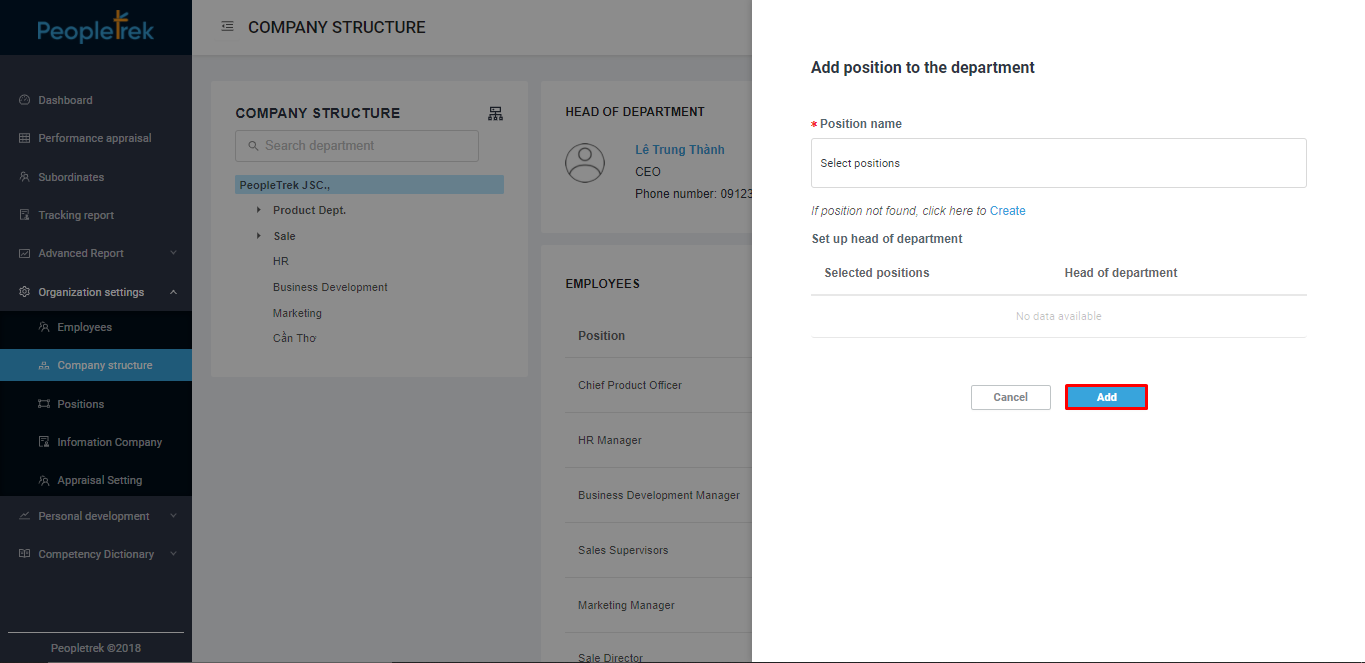
Step 4: Click “Add” on the pop-up screen. Continue on Method 1.
Note:
– Each department has only one position is head of the department.
– In case the company changes employees in the head of the department, the HR department has to transfer that employee to another position or resign to make changes.
– Cannot delete a Department if there is an employee is head of the department.
– Method to delete a Department:
+ Delete or move staff to another department.
+ Delete or move job position to another department.
+ Delete department.